
Fenix+ includes a built-in tool for viewing and recording evacuation simulations (SciViewer), which features its own interface and a range of settings. The simulation can be viewed in 3D or using virtual reality headsets (VR). Compared to the basic views in Fenix+, here, the simulated space is shown to be more realistic: topology elements and the background appear in greater detail, people are represented by 3D models for each type of people profile. The interface appearance and evacuation playback settings can be modified using a range of options. You can set the camera, pause or rewind the playback.
To run SciViewer, the scenario must contain already calculated evacuation simulation results.
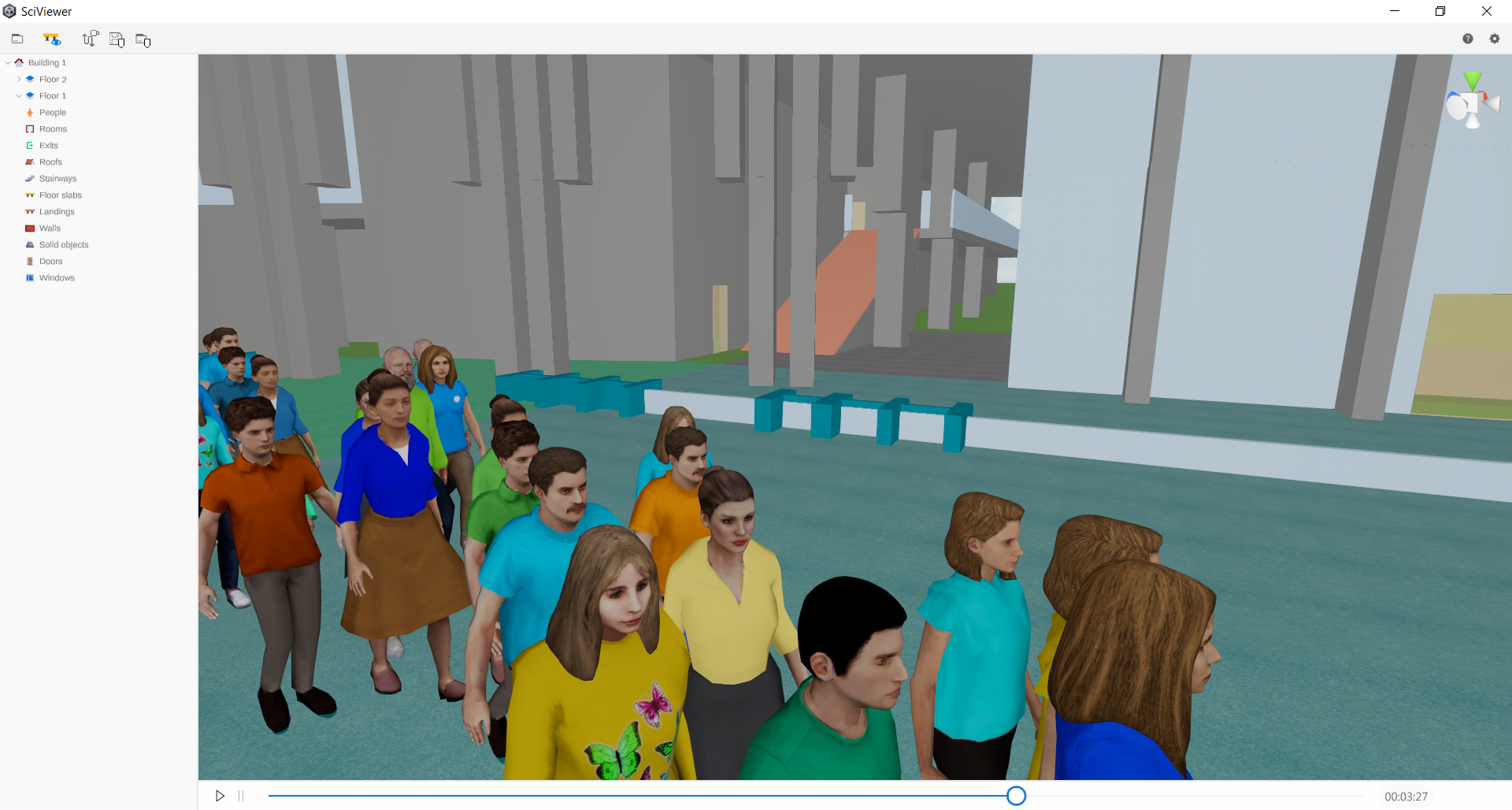 {width=50%}
The viewport will display all the evacuation elements of the scenario — solids (such as Wall, Solid Object, Stairway, Door, others), as well as Rooms, Registering Devices, Exits, Occupants.
Open the visualising tool
To open SciViewer, click the 3D or VR buttons, located in the evacuation simulation results section of the Visualization Tab.

When you open SciViewer, a loop of the evacuation simulation process will start its playback automatically.
Control the camera position using the W, A, S, D keys and a camera angle by moving the mouse while holding down the middle or right mouse button.
Interface
The SciViewer interface consists of the following components:
-
Viewport — the main window for displaying the topological and evacuation components.
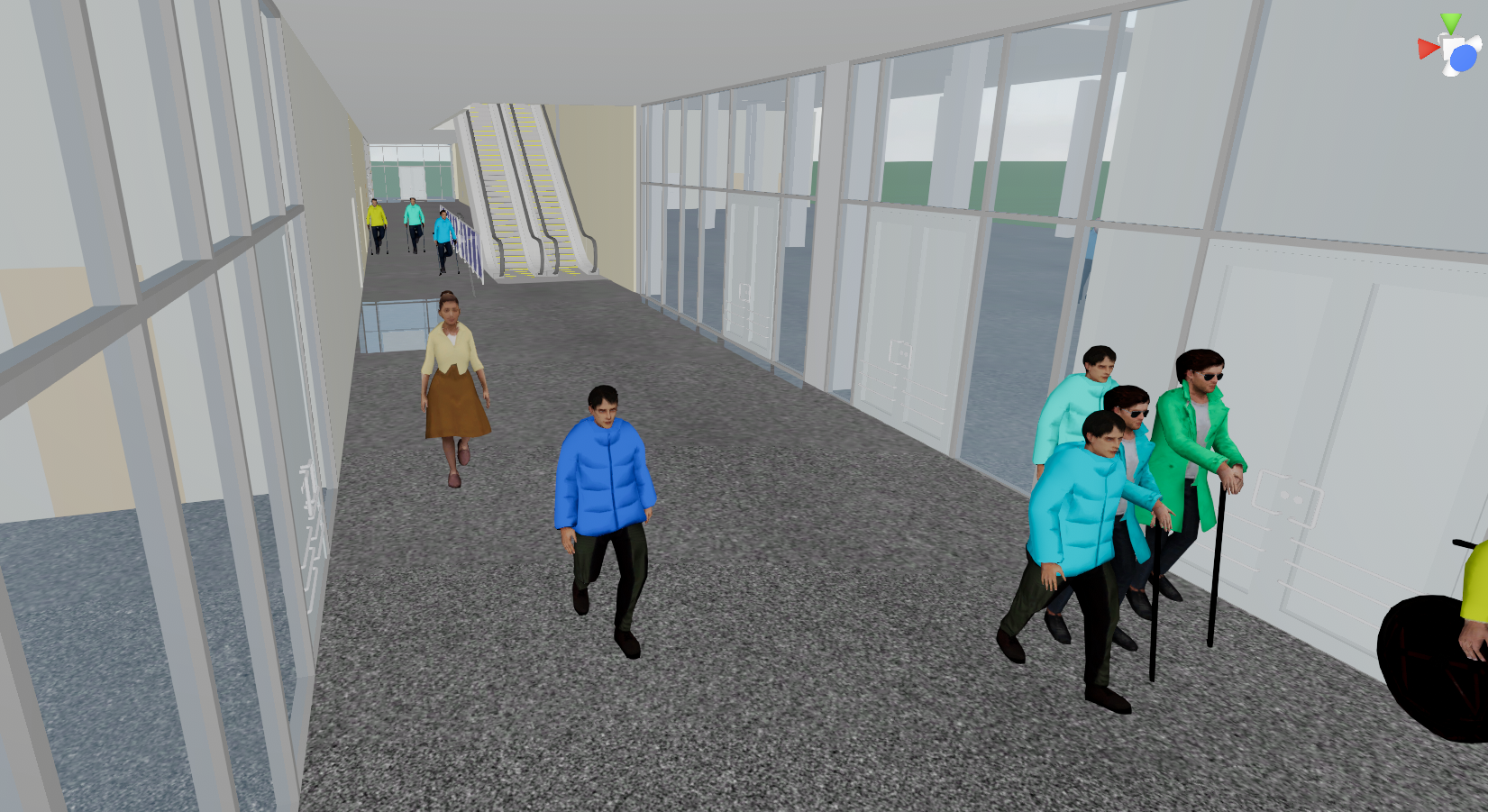 {width=50%}
 -
Viewcube - allows instant switching between camera perspectives. Angles are set by the x, y, z axes, and multiple side views, centered relative to the plane’s zero coordinates.

-
Playback Controls — evacuation playback controls, such as Start, Pause, a playback track slider, and a timer.
 {width=70%}
 -
Scenario Tree, left side of the screen, showing available scenario elements.
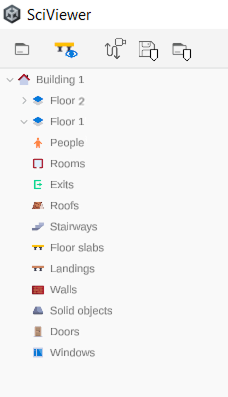
A set of keyboard shortcuts is available when working with the scenario tree. For example, hide an element from the main view by left-clicking on the element’s name in the scenario tree. A complete tooltip is listed in the Control tips
 window.
 -
Menu panel. Current session controls, settings, and recording options. Contains the following:
-
File Load Button
 , located in the top-left corner of the window, allows you to select a different project file to view in the program (with this, you’re not locked to the current Fenix+ opened project).
 -
Floor slab visibility
 — enables or disables Floor slabs from the view (allows see-through view of the building roof).
 -
Video Recording
 — activates an additional panel above the playback bar, which contains controls for the video recording. Place special markers on the timeline to save the camera angles. During the recording or the recording preview, the camera view will shift between set markers.
 -
Save
 and Load
  buttons — additional video recording controls.
 -
Control Tips button
(in the upper-right corner) — displays a list of available hotkeys. -
Settings
 — window appearance, behavior, and recorded video parameters (such as video quality).
-
Settings
- Interface Scale — a slider that changes sizes for the view controls, left and top panels of the window.
- Language — English and Russian are supported.
- Always show visibility toggle — when this option is disabled, the visibility icon in the scene tree will only appear when you hover over the corresponding area of the window with the mouse.
- Play animation in reverse when finished
- “Debug” mode — displays detailed information about the program’s operation: frames per second, allows switching between 3D and VR modes, and quick-access buttons for load different topology or occupant models.
- Ground plane transparency — transparency of the background around the topological model.
- Recording settings — change width and height (in pixels), change the framerate, or bitrate (video quality).
Recording
Recording mode is not available for VR.
Clicking the Recording Mode button will activate an additional panel located above the timeline. It contains the following controls:
-
Add Timestamp
 — a marker will be added at the current position on the timeline, which will save the current camera position.
You can also place a bookmark on the timeline without tying it to the current position of the timeline slider by left-clicking anywhere on the additional panel above the timeline.
Double-click a timestamp marker to move the camera to the position saved in it (without moving the timeline slider).
Click on a timestamp marker to display additional timestamp control buttons — Save, Delete, Duplicate.
-
Save
 — saves the current camera angle for the timestamp marker.
Example: select a timestamp, change the camera position ( WASD keys, the middle or right mouse button), click Save. While in recording or playback — the camera will switch to the saved angle when the playback timer goes under the timestamp marker.
-
Delete
 — deletes a timestamp.
 -
Duplicate
 — duplicates a timestamp.
You can use duplicate to create a “pause” effect — during playback, the camera angle will not change between two identical markers.
-
Preview
 — plays back the evacuation process, during which the camera will switch between angles specified by timestamps. This mode does not save a file of the evacuation recording and does not lock the timestamps from editing.
 -
Record
 — playback and recording of the evacuation process. After pressing the button, select a location and name for the new recording file, then click Save to start recording. Recording will start from the point in time where the slider is set on the timeline, until the end of the evacuation or until the Stop button is pressed. Timestamps will be locked from editing.
 -
Stop
 — stops playback of the preview or recording.
The menu bar also contains buttons for managing created timestamp groups:
- Save Timestamps button — saves all the timestamps from the current SciViewer session.
- Load Timestamps button — loads previously saved timestamps into the SciViewer session.